
Photo Enhancer vs Image Upscaler: Which Should You Use?
Photo enhancement improves appearance; upscaling increases pixel dimensions. Compare use cases, 2× and 4× calculations, and when to use both.
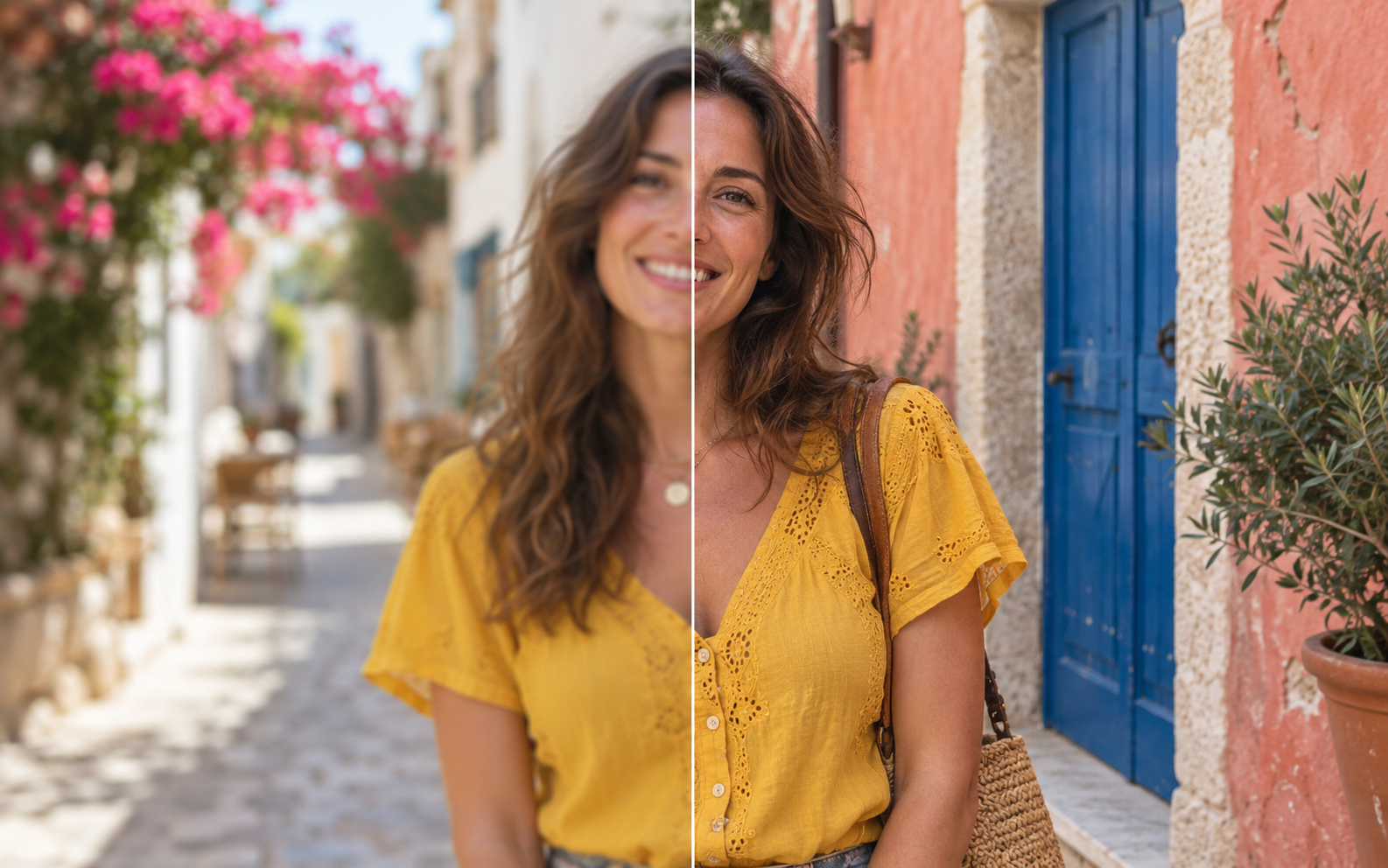
Use a photo enhancer when an image has enough pixels but looks noisy, flat or mildly soft. Use an image upscaler when a reasonably clear image needs larger pixel dimensions. If both problems exist, review an enhancement first, then enlarge the accepted result. Neither tool can verify details that are missing from the source.
These names describe the main purpose of a tool, not a universal technical standard: an enhancer may resize its processing copy, and an upscaler may also alter texture. Check the projected output dimensions and compare the actual result.
What is the difference between enhancement and upscaling?
| Decision | Photo enhancer | Image upscaler |
|---|---|---|
| Main goal | Improve visible clarity, noise or tonal balance. | Increase pixel width and height. |
| Useful starting point | A large-enough photo with a visible quality problem. | A clean photo that is smaller than the destination requires. |
| Dimensions | Depend on the selected model and processing copy. | Increase according to the selected scale or target, within tool limits. |
| Main review risk | Over-smoothed texture, halos or changed facial features. | Larger artifacts, invented texture or plausible-looking incorrect text. |
| Acceptance test | The defect improves and important details still match. | The file reaches the required size and remains acceptable at the destination size. |
Try Photo Enhancer for overall appearance, or Image Upscaler for a larger pixel grid. Before using either, read the original's width and height in your image viewer and identify the destination's requirements.
What do 2× and 4× upscaling actually mean?
A scale factor applies to both dimensions. 2× doubles width and height, so pixel count becomes 4×. 4× makes both dimensions four times larger, so pixel count becomes 16×. This is a calculation of output size, not a claim that image quality increases by the same amount.
| Scale | Example dimensions | Pixel count |
|---|---|---|
| Original | 1200 × 800 | 0.96 megapixels |
| 2× | 2400 × 1600 | 3.84 megapixels |
| 4× | 4800 × 3200 | 15.36 megapixels |
These are mathematical examples, not generated-image measurements. Actual available output depends on the source, model and limits shown by the tool.
Adobe's image size documentation distinguishes pixel dimensions from print resolution and describes resampling as adding or removing pixels. Changing a PPI value without adding pixels does not create a more detailed image.
Which tool should you choose for your photo?
A clean 1200 × 800 photo for a 2400 × 1600 layout
Choose 2× upscaling. Both sizes have a 3:2 aspect ratio, so this example does not require a crop. Inspect the enlarged result for artifacts and stop if it fits the layout. There is no reason to add enhancement simply because another tool is available.
A noisy 2400 × 1600 photo for a 1200 × 800 display
The source already has enough pixels. View it at the destination size first; the noise may be less noticeable there. If it still distracts, try enhancement and compare skin, fine texture and smooth backgrounds. Check processing dimensions so a smaller intermediate copy does not discard detail you need.
An image for a 6 × 4 inch print
If your print provider requests 300 PPI, the calculation is 6 × 300 by 4 × 300, or 1800 × 1200 pixels. That requirement is conditional on the printer's instructions, not a universal quality guarantee. A clean 2400 × 1600 file already exceeds those dimensions; upscaling it just to increase the file size is unnecessary. Decide on cropping separately if the frame's proportions differ.
A small photo with unreadable lettering
Neither tool can establish the wording from an ambiguous source. Enlargement may make the shapes bigger or create more plausible letters without making them correct. Find a higher-quality original or another capture. Do not treat an AI-enhanced label, price or document as a verified transcription.
Should you enhance or upscale first?
- Clean but small: upscale directly.
- Noisy and small: try enhancement, accept or reject it, then upscale if needed.
- Motion blur or missed focus: consider Unblur Image, but review the result before enlarging it.
- Scratched or damaged scan: consider Old Photo Restoration, then enlarge only an accepted repair.
- Already suitable: keep the original; another processing step is optional.
This is a starting workflow, not a rule that guarantees the best output. Save the original and each accepted intermediate file separately. Repeated processing can amplify an unwanted change. For the visual review itself, follow the natural enhancement checklist.
How do you compare results fairly?
Compare the same subject at the same displayed size before inspecting each file at 100%. A larger preview can make a result appear more impressive even when the important details are less faithful. Check faces, labels, straight lines, fabric and quiet areas such as walls or sky.
For a website, judge the image at the intended display size. For a personal print, use the printer's dimensions and consider a small proof before ordering a larger print. For a family record, keep the original: additional pixels are estimates, not new historical evidence.
Frequently asked questions
Can an enhancer also increase resolution?
Some can, but the name alone does not establish the output size. In MyEnhancer, review the selected option's dimensions before processing. Choose the dedicated upscaler when reaching a particular pixel size is the main goal.
Will 4× look better than 2×?
Not necessarily. 4× creates a larger output, but it can also make artifacts more noticeable. Choose the smallest scale that meets the destination's dimensions, then review the actual image.
Is a larger PNG better than a smaller JPG?
File size and format alone do not answer that question. Compression, pixel dimensions and visible defects all matter. A large file can still contain blur or incorrect detail; changing the format does not recover lost information.
Sources and editorial scope
The worked examples are arithmetic and decision examples, not a benchmark comparing model outputs. The cover is illustrative. Product controls and limits should be checked in the tool before each task.
- Adobe: Image size and resolution — dimensions, PPI and resampling.
- Adobe: Smart Sharpen controls — inspecting sharpening at 100% and understanding edge contrast.
Published October 27, 2026. See our editorial approach and corrections process.