


Scratches and dust
Reduce fine scratches, dust spots and surface distractions in scans so recognizable details are easier to see.
AI old photo restoration reduces supported scratches, dust and light surface wear in a digital scan. It does not repair the physical print. Keep your original and compare faces, borders and historical details before saving.
Select model
Output uses the closest supported aspect ratio; framing may change.
Processing sends your photo and selected settings to third-party image services. Photos are not published in a public gallery.
Third-party retention periods, training use and processing regions have not been verified. We cannot promise immediate deletion or that images are never used for training. Avoid uploading sensitive photos if you need these guarantees.
Selecting a photo may save a working copy in this browser for task recovery. Closing the tab does not request deletion from processing services.
Read the privacy policy · Contact support about data deletion
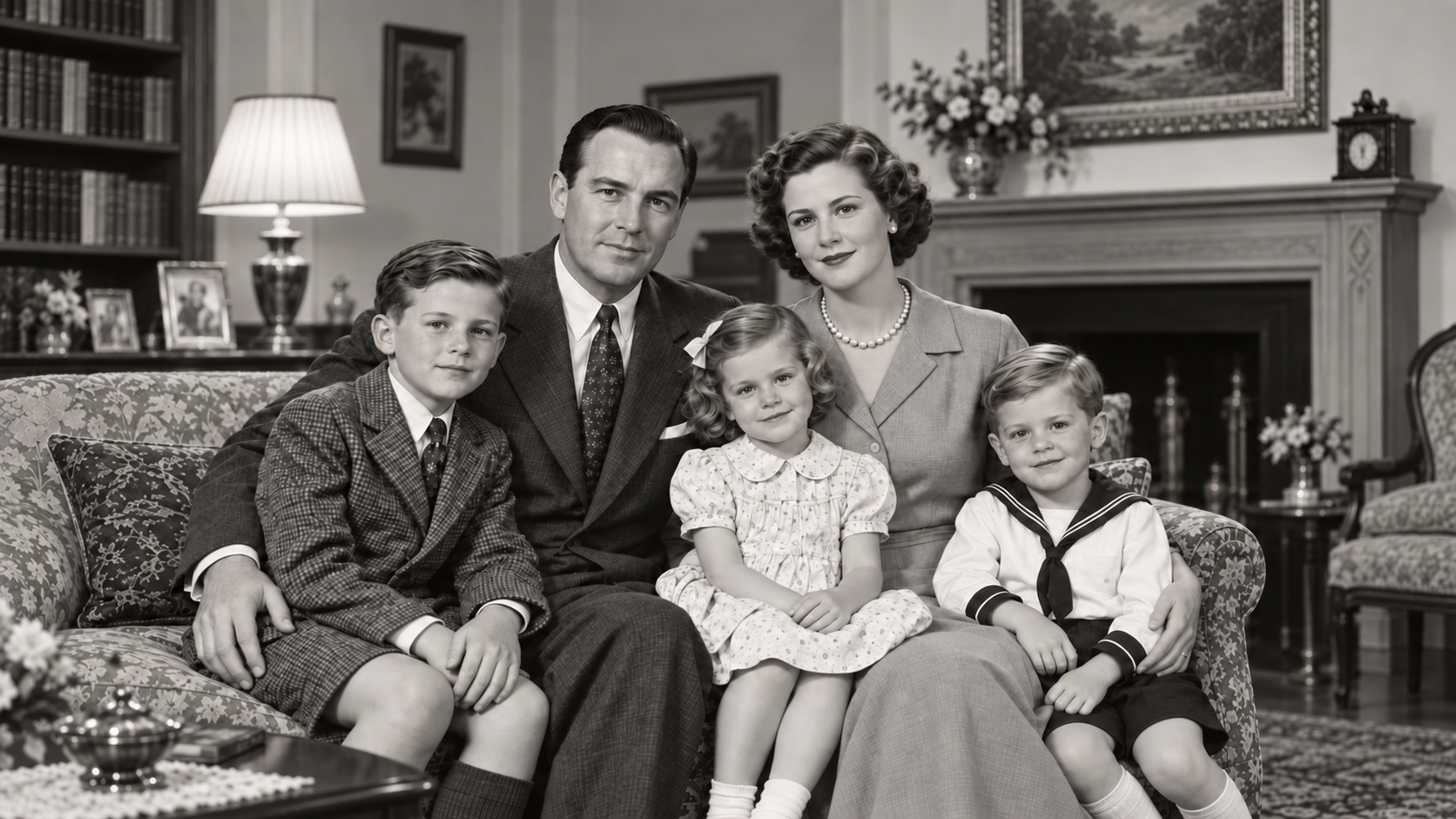
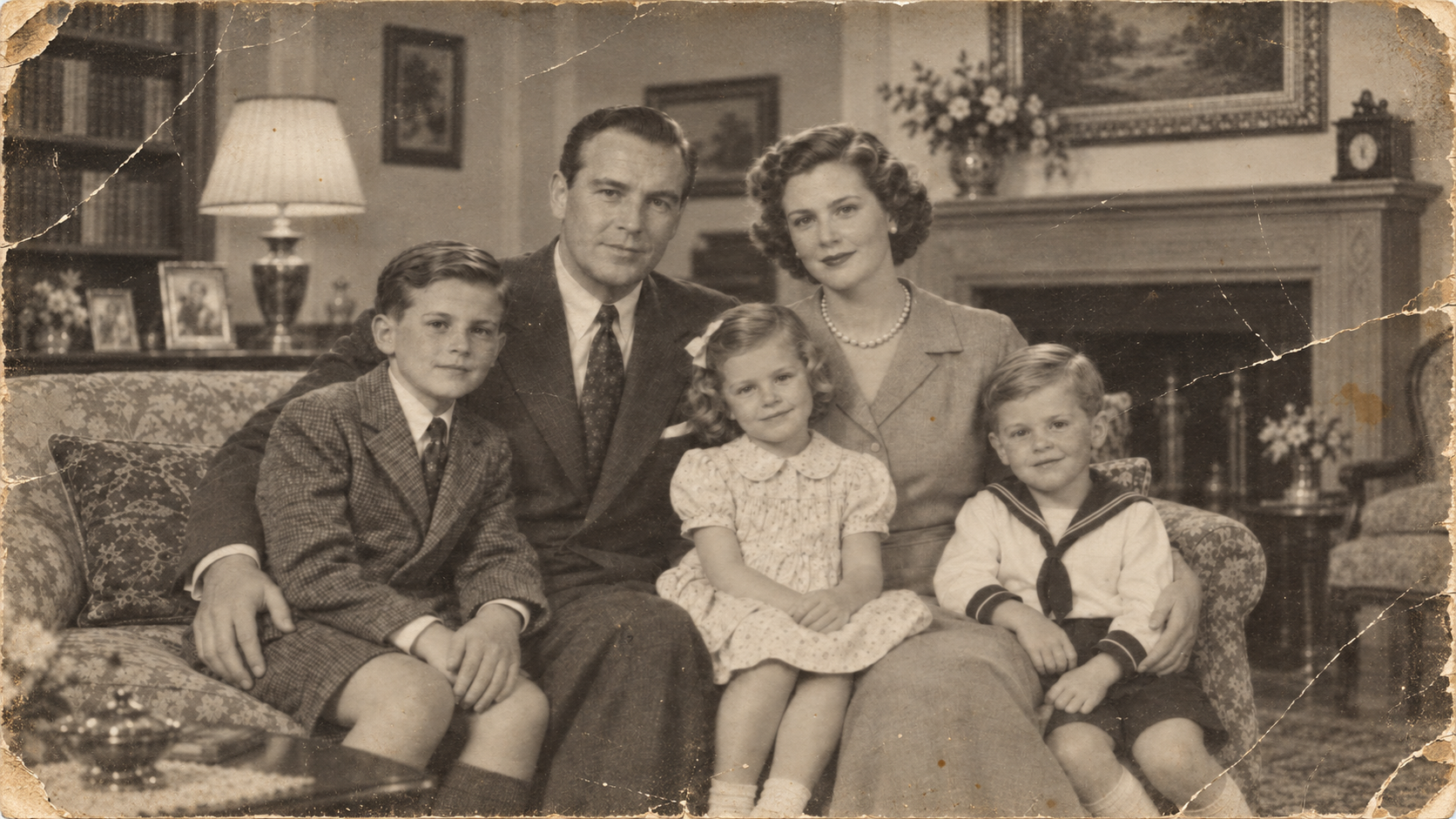
Sign in to use daily free credits for single-image Standard restoration. Pro and batches require purchased or subscription credits. Check the cost and available balance before processing.
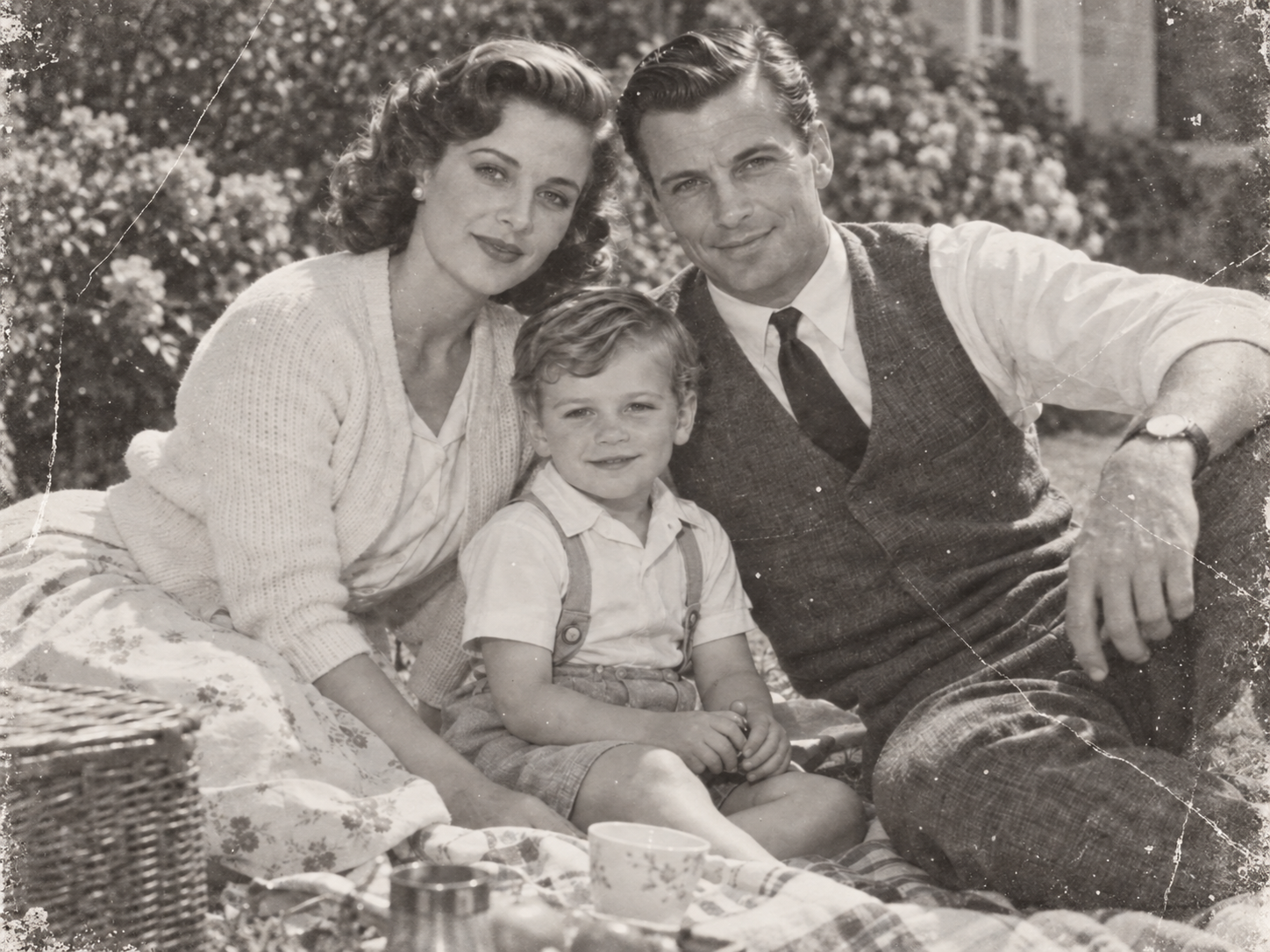


Upload one scan or photographed copy in a supported static format up to 32 MiB / 100 MP (automatically resized to this version, within 10 MiB). Keep the full image and damaged details visible where possible.
Start restoration to let AI repair common damage such as scratches, dust, and surface wear.
Compare the result with the original. Check the people and important details, then download the photo when you are satisfied.
Want to add color to a black-and-white photo? Use Photo Colorizer after restoration. Explore AI photo colorization
MyEnhancer Old Photo Restoration reduces supported scratches, dust and light surface wear in a digital scan. It does not repair a physical print. Missing faces, severe tears and unreadable text cannot be reliably recovered; keep the untouched scan and inspect the edited copy.
| Version | Processing copy | Credits per image |
|---|---|---|
| Standard | Up to 24 MP | 3 credits |
| Pro | Up to 24 MP | 6 credits |
Rates shown apply after sign-in. The table describes processing versions, not subscription plans. Check the tool’s quote before starting.
Standard repairs supported surface damage. Pro also offers optional Fix Colors, off by default and included in its 6-credit price. Fix Colors adjusts existing colors; adding color to a black-and-white photo is a separate Photo Colorizer task.
Output is capped at 24 MP. This is a limit, not a promised output size or a guarantee of unchanged dimensions.
Image-restoration research distinguishes perceptual realism from reconstruction accuracy. Blau & Michaeli, The Perception-Distortion Tradeoff (CVPR 2018). This is research background, not a quality test of this tool.
Maintained by MyEnhancer. Local content review: . How we check this content
Choose scanning resolution for the original print, your scanner’s optical capability and the intended output. The Library of Congress suggests 400 or 600 dpi for photos intended for enlargement to 8 × 10 inches or larger; this is not a requirement for every scan.
Library of Congress: Scanning Your Personal Collections (PDF)
From family portraits to old wedding photos, clean up scratches, dust and surface wear so treasured pictures are easier to save, share and collect in a keepsake album.
Illustrative examples. Actual results vary by source image.
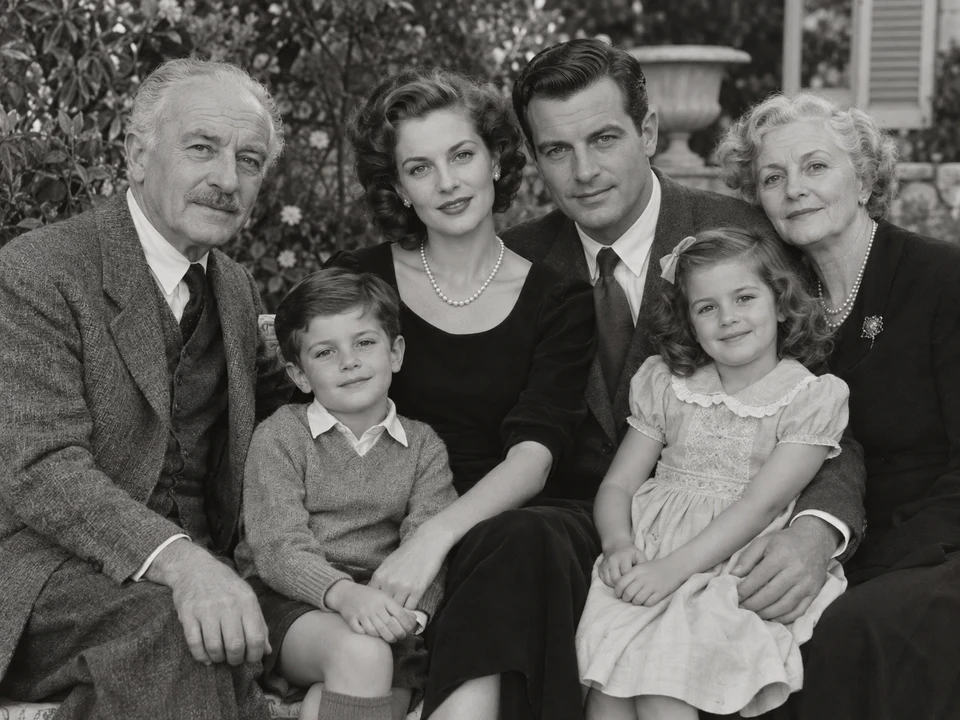
Scratches, creases or spots on a family photograph? Reduce visible damage to make familiar faces and moments together clearer and easier to share.


A photo of your parents in their youth or a treasured portrait of a grandparent looking soft? Clean up surface marks around the face to make existing features easier to see while keeping a natural vintage feel.

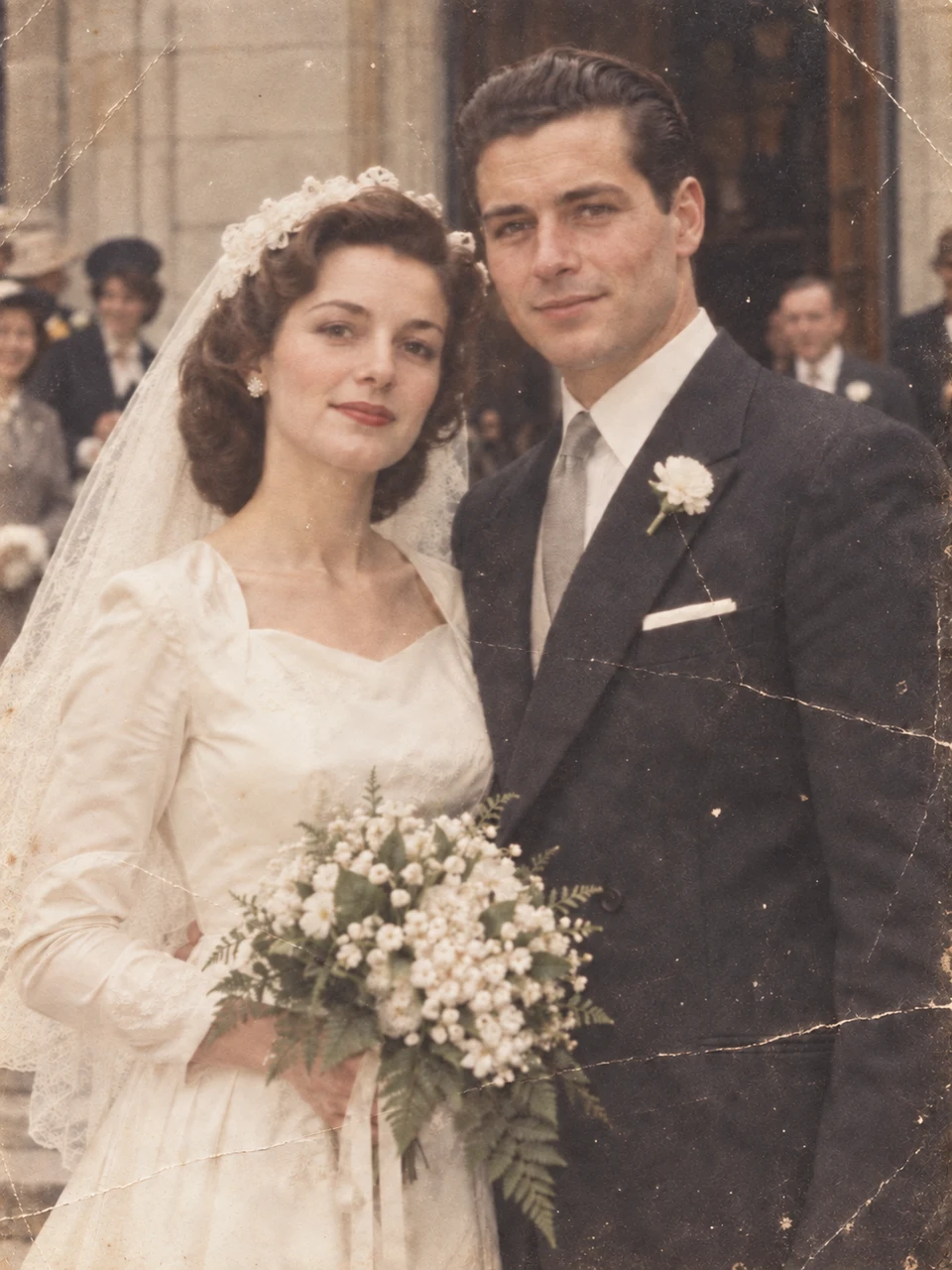
Restore old wedding, birthday or graduation photos for a keepsake album or a family gift. For larger prints, upscale the restored image to suit your intended print size.

Dust and fine scratches on old color photos of jumping rope and waiting for a turn with classmates? Clean up surface marks while keeping the existing tones, and revisit carefree school days.
Start with the damage you can see. Scans with recognizable details are better candidates for cleaning scratches, dust and light surface wear.
Reduce fine scratches, dust spots and surface distractions in scans so recognizable details are easier to see.


Best for light creases and wear where the scene and subjects remain recognizable. Inspect deep folds across faces and extensive damage carefully.

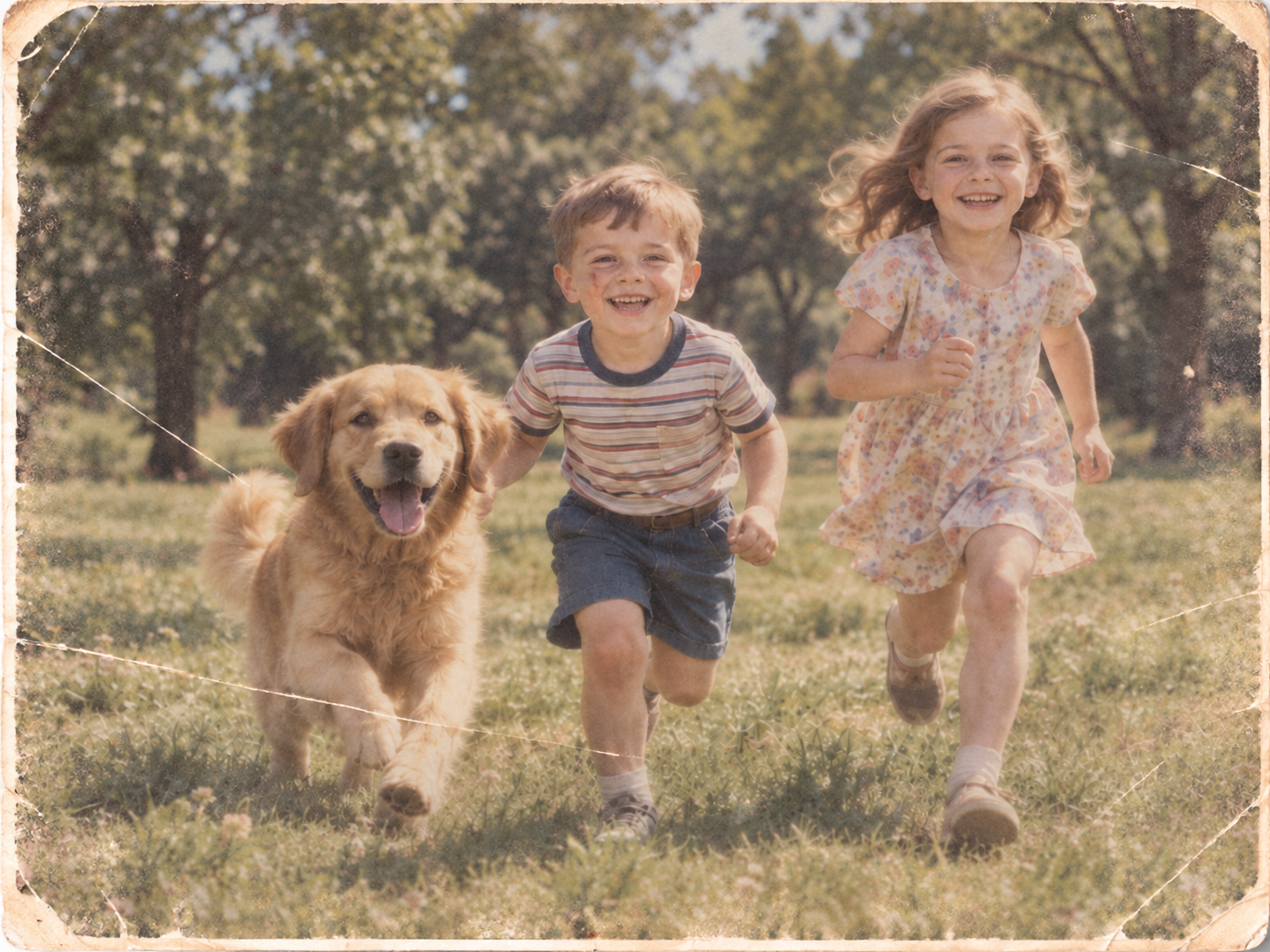
Clean surface specks in album scans while aiming to preserve facial features and the original composition. Start with a clear, glare-free scan.
Organize portraits of parents, grandparents and childhood moments into digital copies for family to view and share.
Use reviewed photos in a memory book. Keep the original scans and record names, dates and places separately.
Restore and check facial details first. Then decide whether your intended print size needs more pixels for an album or keepsake.
Upscale a restored photoOld photo restoration costs 3 credits per image with Standard or 6 credits with Pro. The cost is shown before processing. Credits are automatically returned if processing fails because of a technical problem. If a completed result has a serious quality problem, submit a support ticket for review; any credit return depends on the review outcome.
Old photo restoration digitally reduces dust, scratches, and surface wear in a scan; it does not repair the physical print. The result may look clearer and cleaner, but remains an edited copy rather than the untouched original.
Yes. Import a supported static photo up to 32 MiB / 100 MP; a processing copy is automatically resized to the selected version and kept within 10 MiB. Sign in, choose Standard (3 credits per image) or Pro (6 credits per image), then compare the result with the original. You can process one photo or a batch of 2–20 photos; batches require purchased or subscription credits. This repairs digital images, not physical prints or deleted files.
Restoration requires sign-in. You can use daily free credits for a single-image Standard task (3 credits); Pro costs 6 paid credits. The price appears before processing. Credits are restored if processing fails technically without an accepted result.
Upload your clearest uncropped scan and start restoration. Once processing finishes, compare faces, hands, text, and background details with the original before downloading.
Choose scanning resolution for your print, scanner and intended use; 600 dpi is not required for every photo. For enlargement to 8 × 10 inches or more, the Library of Congress suggests 400 or 600 dpi. Scan the full photo, keep an untouched master, and avoid reflections when using a phone. See the scanning guide on this page for the source and preparation steps.
Not exactly in every case. AI can reduce supported scratches, dust, and surface damage, but a severely torn, hidden, blurred, or missing feature may be reconstructed rather than recovered. Keep the source scan and verify important details yourself.
Pro offers optional Fix Colors at no extra credit cost; Standard does not. Faded-color repair adjusts existing colors, while colorization adds estimated colors to a black-and-white image. Black-and-white photos can still receive scratch and surface-damage repair. Compare tones with the original; changed or added colors are not proof of historical accuracy.
Choose the tool for the main problem: restoration for scratches, dust, and surface damage; Unblur Image for camera blur. Review the result before upscaling, and upscale only when display or print dimensions need more pixels. You do not need to run every tool; repeated processing can amplify artifacts.
Start with a clean, uncropped scan and keep an untouched master. Restore surface damage first, compare and accept the result, then upscale only if the intended print size needs more pixels. Repeated processing can amplify artifacts.
Compare identity, facial shape, eyes, teeth, hands, handwriting, dates, clothing, jewelry, uniforms, signs, and important background objects. A plausible reconstructed detail should not be treated as a verified historical fact.
Standard costs 3 credits per image and Pro costs 6. Credits are automatically returned if processing fails because of a technical problem. Dissatisfaction with a completed result does not automatically return credits; submit a support ticket if there is a serious quality problem.