
How to Enhance Photo Quality Without Making It Look Artificial
Improve photo clarity, noise and tone with a practical review checklist. Learn when to enhance, when to upscale, and when to keep the original.
To enhance photo quality naturally, start with the best original, identify one visible problem, and review a single enhancement pass before doing anything else. Compare the result at the intended viewing size and at 100% zoom. Keep it only if clarity, noise or tone improves without changing important faces, lettering or textures.
Photo enhancement changes the appearance of an image; it does not verify details missing from the source. If the photo is already clear but too small for its destination, choose upscaling instead.
What should you fix first?
A dark photo, a small photo and an out-of-focus photo can all look unclear, but they need different decisions. Open the original at its native size before choosing a tool. A preview stretched across a large screen may look worse than the same file at its intended display size.
| What you see | First action | Check before keeping it |
|---|---|---|
| Noise, flat tone or mild softness | Try general photo enhancement. | Skin, fabric and shadows still look like the source. |
| A clean image that is too small | Calculate the required dimensions, then upscale. | The output fits the layout without changing important details. |
| Motion blur or missed focus | Try a deblurring tool and inspect the result. | Edges improve without inventing faces or words. |
| Scratches or damaged scanned areas | Consider old-photo restoration. | Repairs do not replace meaningful objects or facial features. |
If the photo already works at its intended size, keep it as it is. More processing is not automatically an improvement.
How do you enhance a photo without overprocessing it?
1. Keep an untouched source
Use the original camera file or the best scan available, rather than a screenshot or a repeatedly downloaded social-media copy. Save the processed file separately. Do not overwrite the only copy of a family photograph or product image.
2. Define one improvement and one detail to protect
For a portrait, the improvement might be less visible noise; the protected detail might be the person's eye shape. For a product image, the improvement might be clearer texture; the protected detail might be the exact wording on its label. This creates a concrete acceptance test.
3. Review the settings before starting
Open Photo Enhancer, select your photo and review the selected model, processing dimensions and displayed credit cost. Some options use a resized processing copy. Choose the option for the detail you need to preserve, rather than assuming every output uses all the original pixels.
These are product workflow instructions, not a benchmark of image quality. Results depend on the source and settings. Review the upload privacy information before sending sensitive photos to a processing service.
4. Compare the same areas at the same displayed size
First look at the whole image. Check skin color, lighting and the relationship between subject and background. Then inspect the same face, label or textured area in both files. If output dimensions differ, match the subject's displayed size before comparing it.
Finally, inspect each file at 100% zoom for artifacts. Adobe's Smart Sharpen documentation also recommends 100% viewing when judging sharpening and explains that stronger sharpening increases edge contrast. That supports the inspection method; it is not an endorsement of MyEnhancer.
5. Accept the result or return to the source
Keep the enhancement when the intended defect is reduced and the protected detail still matches. Reject it when it changes identity, lettering, geometry or meaningful texture. Avoid repeatedly enhancing a flawed result: start again from the original, or use a better source if one exists.
What are the warning signs of excessive enhancement?
- Bright outlines around edges: check dark hair, branches and buildings for pale rims. A sharper outline is not necessarily more accurate detail.
- Waxy skin or flattened fabric: compare cheeks, hands and clothing. Removing noise should not be accepted at the cost of detail you wanted to retain.
- New patterns or changed lettering: read labels against the source, not from memory. A crisp incorrect letter is still incorrect.
- A different face or expression: compare eyes, teeth, mouth shape and facial proportions. A flattering result can still misrepresent the person.
- Blotchy walls or skies: inspect smooth areas as well as the subject. Processing artifacts can be less obvious in a busy image.
A smaller preview may hide these problems. It does not make the altered detail reliable.
Should you enhance before enlarging?
If the photo is clean but too small, use Image Upscaler directly. If it is both noisy and too small, first try enhancement, compare that intermediate result, and enlarge only if the change is useful. For motion blur, Unblur Image may be a more relevant first task; for scratches, consider Old Photo Restoration.
There is no universal sequence that improves every photo. Each extra pass can change the image. The enhancer versus upscaler guide includes dimension calculations and worked choices to help you avoid unnecessary processing.
Frequently asked questions
Can enhancement recover the exact missing detail?
Not reliably from an ambiguous source. AI can estimate plausible texture, letters or facial features, but a more convincing result does not establish what was originally there. Keep the original as the source of record.
Does a larger file mean better photo quality?
No. File size also depends on format and compression. Compare pixel dimensions, visible artifacts and suitability for the destination, rather than judging quality from megabytes alone.
Why does my enhanced photo look artificial?
Possible signs include exaggerated edge contrast, loss of skin texture or invented patterns. Compare those areas with the untouched source. If the output changes a detail that matters, reject it instead of applying another pass just to make it sharper.
When should I stop editing?
Stop when the photo meets its intended use and the important details still match. If the original is already suitable, no enhancement is required.
Sources and editorial scope
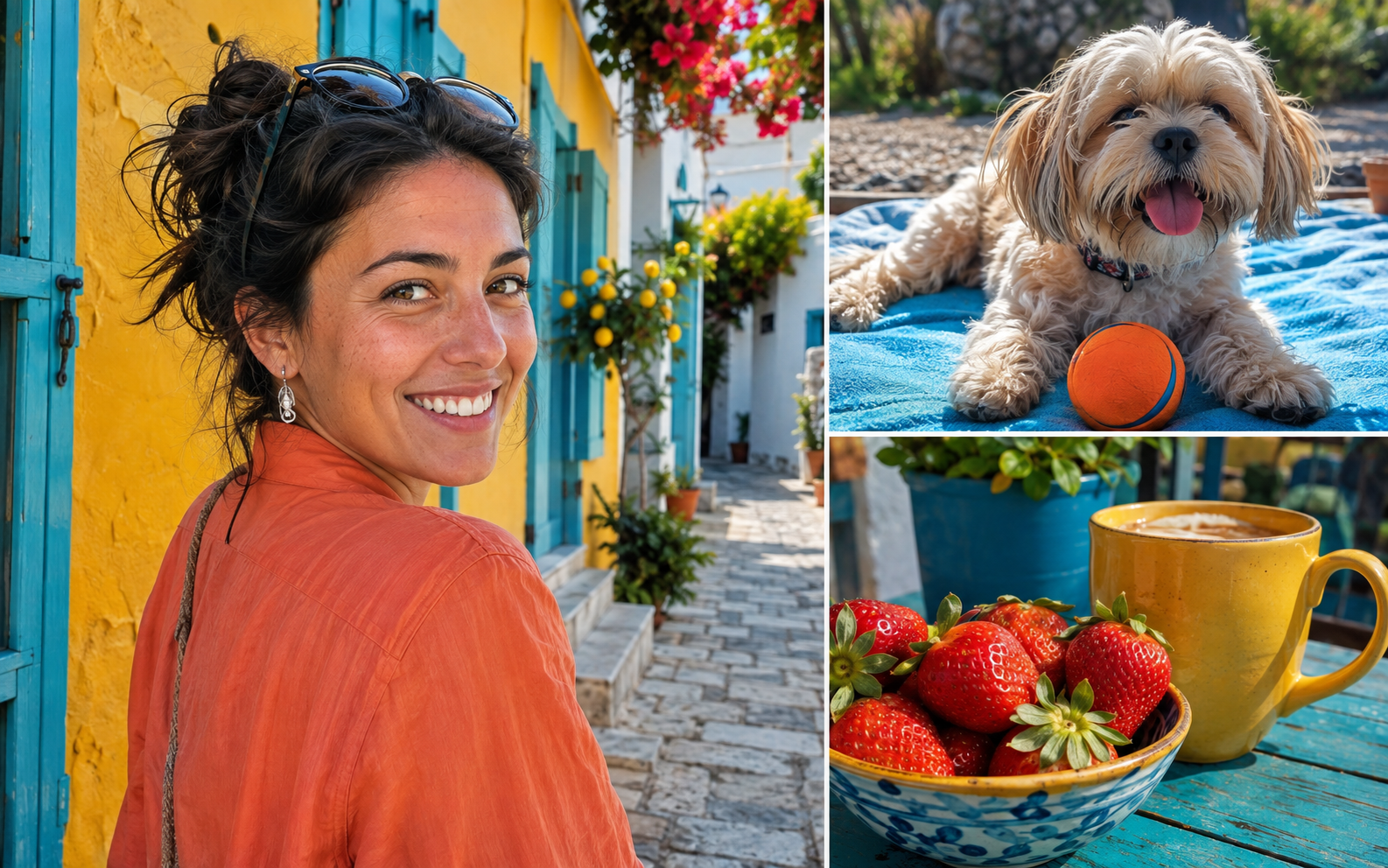
This guide combines MyEnhancer's tool workflow with a practical acceptance checklist. The cover is illustrative, not a measured before-and-after result. No live-model comparison or success-rate claim is presented here.
- Adobe: Smart Sharpen controls — sharpening, edge contrast and inspection at 100%.
- Adobe: Image size and resolution — the distinction between pixel dimensions, resolution and resampling.
Published October 27, 2026. See our editorial approach and corrections process.