
How to Fix Overexposed Photos: What Can You Actually Recover?
Fix overexposed photos with real editing tests, Photopea settings and a MyEnhancer workflow. See when to try enhancement and what cannot be recovered.
To fix overexposed photos, reduce Exposure if the whole image is too bright, then lower Highlights while watching the area you want to save. If a face or sky stays featureless as it darkens, try the original RAW file. Detail missing from every captured color channel cannot be retrieved by simply darkening the image.
Start with the original camera or phone file and keep an untouched copy. Below, three real photographs show an overall brightness correction, a selective highlight adjustment and a failed recovery. We edited the downloaded JPEGs in Photopea on October 31, 2026, and saved the settings and exports. These first three comparisons use tonal edits only, with no simulated overexposure. Two separately labeled MyEnhancer AI follow-up tests appear afterward.
You can follow the tested steps in Photopea, or use the same inspection method in an editor you already have. The numbers below belong to Photopea; they are not equivalent Lightroom presets. Once the brightness is usable, MyEnhancer Photo Enhancer is an optional next step for remaining noise or mild softness. Correct the exposure first so you can judge what the enhancement changes.
Can an overexposed photo be fixed?
A photo that looks too bright may still contain useful detail. The harder problem is clipped highlights: bright areas have reached the maximum value the file can represent. Lowering brightness can make a white patch gray without revealing any texture.
Use the following checks to choose your first move, then compare them with the photographed examples below.
| What you see | What to try first | What tells you to stop |
|---|---|---|
| The whole photo is pale, but texture is visible | Lower overall Exposure, then review Highlights. | The subject looks too dark or colors become unnatural. |
A bright face, sky or shirt beside a well-exposed subject | Try Highlights; use a mask if the rest of the frame suffers. | The patch darkens without useful detail appearing. |
| Large blank white areas remain after adjustment | Check the original RAW file or a different frame. | The best source still contains no usable detail in that area. |
Brightness is usable, but noise or mild softness remains | Compare one Photo Enhancer pass with the exposure-corrected copy. | Faces, lettering or fabric patterns change, or the output loses detail you need. |
A clipping warning describes the current rendering; it does not by itself prove that the underlying RAW capture has no recoverable information. Adobe's Camera Raw highlight-recovery whitepaper explains how surviving color channels can help reconstruct highlights. It is historical background on the mechanism, not a promise about a current camera or a specific file.
How to fix overexposed photos with exposure and highlight controls
Work through one adjustment at a time. In Photopea, choose File → Open and open a copy of your photo. The tested controls are under Image → Adjustments. There is no preset value that fixes every photo: the source, editor and area you want to protect determine how far to move each control.
1. Choose the detail that matters
Pick a specific area: a cheek, the folds of a white shirt, or clouds near the horizon. Judge edits against that area as well as the whole photo. A small reflection can remain white if it does not distract from the subject; you do not need to remove every clipping warning.
2. Inspect the area you want to save
Zoom in on the bright area before adjusting it. Look for existing folds, edges and tonal transitions. In Lightroom desktop, the upper-right histogram clipping indicator can also display clipped highlights as a red overlay, as documented in Adobe's Lightroom editing guide.
Note where the warning falls. A warning over an eye or product label deserves closer inspection than one over a tiny glint. Use the picture to decide whether the warning matters.
3. Lower Exposure if the entire frame is too bright
In Photopea, choose Image → Adjustments → Exposure. Lower Exposure gradually while watching the main subject; leave Offset at 0 and Gamma correction at 1 to isolate the exposure change. Stop when the overall brightness is useful for the picture's intended use. If the subject was already correctly exposed and only the sky was too bright, avoid darkening the entire frame to fix the sky.
4. Lower Highlights and inspect the bright area
In Photopea, choose Image → Adjustments → Shadows/Highlights. Set Shadows Amount to 0% if you only want to evaluate the bright areas. Increase Highlights Amount gradually. This control darkens highlights as its amount rises; it is not the same direction or scale as Lightroom's Highlights slider. Our second case records all the settings used.
Ask a concrete question: can you now see a fold, an edge, or a transition in skin tone? A darker patch alone is not evidence of recovered detail. If the area turns dull before useful texture appears, back off rather than forcing every bright value downward.
5. Adjust a local area when the rest of the photo already looks right
If your editor supports masks, select the bright region and adjust its exposure or highlights separately. Check the boundary of the selection as well as its center. A correction that leaves a dark rim around hair or a building needs a gentler adjustment or a better mask.
For a bright face, inspect forehead, cheeks and the edge of the jaw. For a sky, inspect rooflines, trees and the horizon. These are review targets, not claims that each area will be recoverable.
6. Export a copy and compare at matched sizes
Compare the original and edited image at the same displayed size. Then inspect important areas at 100% zoom. Read any visible lettering and check that facial features still match. Keep the edit only if it solves the brightness problem without introducing a more distracting one.
Export separately and reopen the saved file. Judge the file you will actually share, not just the editor preview. For broader checks on color and texture, use our natural photo-enhancement checklist.
How to use MyEnhancer after correcting the exposure
Try MyEnhancer when the exposure-corrected photo still has noise or mild softness that matters at your intended viewing size. Keep the corrected copy as your comparison baseline. If it already looks good, you can stop without another processing pass. A blank clipped patch is not a reason to expect enhancement to recreate the original scene.
- Save your exposure correction separately. Use the exported photo, not a screenshot of the editor or a comparison graphic. Keep the untouched original too.
- Open MyEnhancer Photo Enhancer and upload that copy. Choose the version you want to evaluate. Review the upload privacy information before sending a sensitive photo.
- Read “Before you process.” Check Original image, Processing copy, Expected output and the displayed credit cost. Standard used an approximately 2 MP processing copy in our tests. If your source is larger, decide whether the smaller output will still suit your use; enhancement is not automatically a resolution upgrade.
- Select an output format and run one enhancement. We used Standard and PNG for the tests below. Costs and available credits can change, so use the quote shown for your photo rather than assuming a fixed free allowance.
- Compare with the exposure-corrected baseline, then download if useful. Match displayed subject sizes before judging the overall result; inspect the same face, text or fabric area at 100% too. Keep the enhancement only if the remaining problem improves without changing a detail that matters. Return to the saved baseline if it does not.
The important choice is whether the additional pass improves this photo for your destination. A smoother preview can also hide texture, and a smaller processing copy can discard details before enhancement starts. The natural enhancement checklist gives more checks for faces, lettering and artificial-looking texture.
See the actual MyEnhancer settings and preflight check
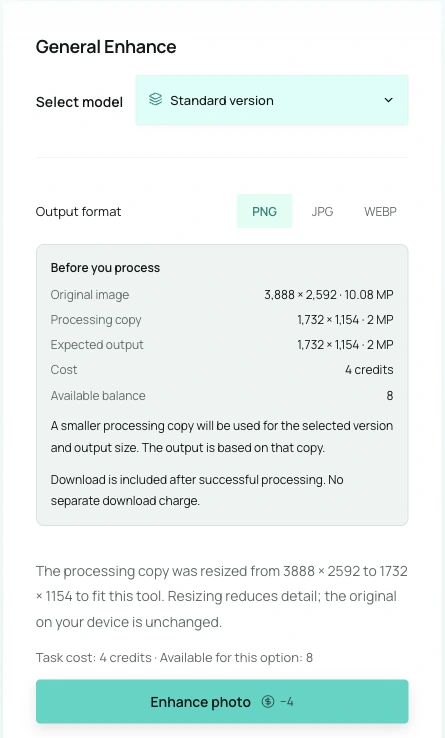
This screenshot records the quote for one test, not a fixed price or output-size guarantee. Check the result's actual dimensions too; our stage-photo download was larger than its preflight estimate, as recorded below.
Three real overexposed photos: settings, results and limits
All three inputs were existing photographs published on Wikimedia Commons. We used the available JPEGs, not RAW files. The comparisons use matching scales and the same crop coordinates; the orange boxes locate the 320 × 320 pixel crops. Open a comparison to inspect it at full size. The separate screenshots show the actual Photopea dialogs with Preview enabled.
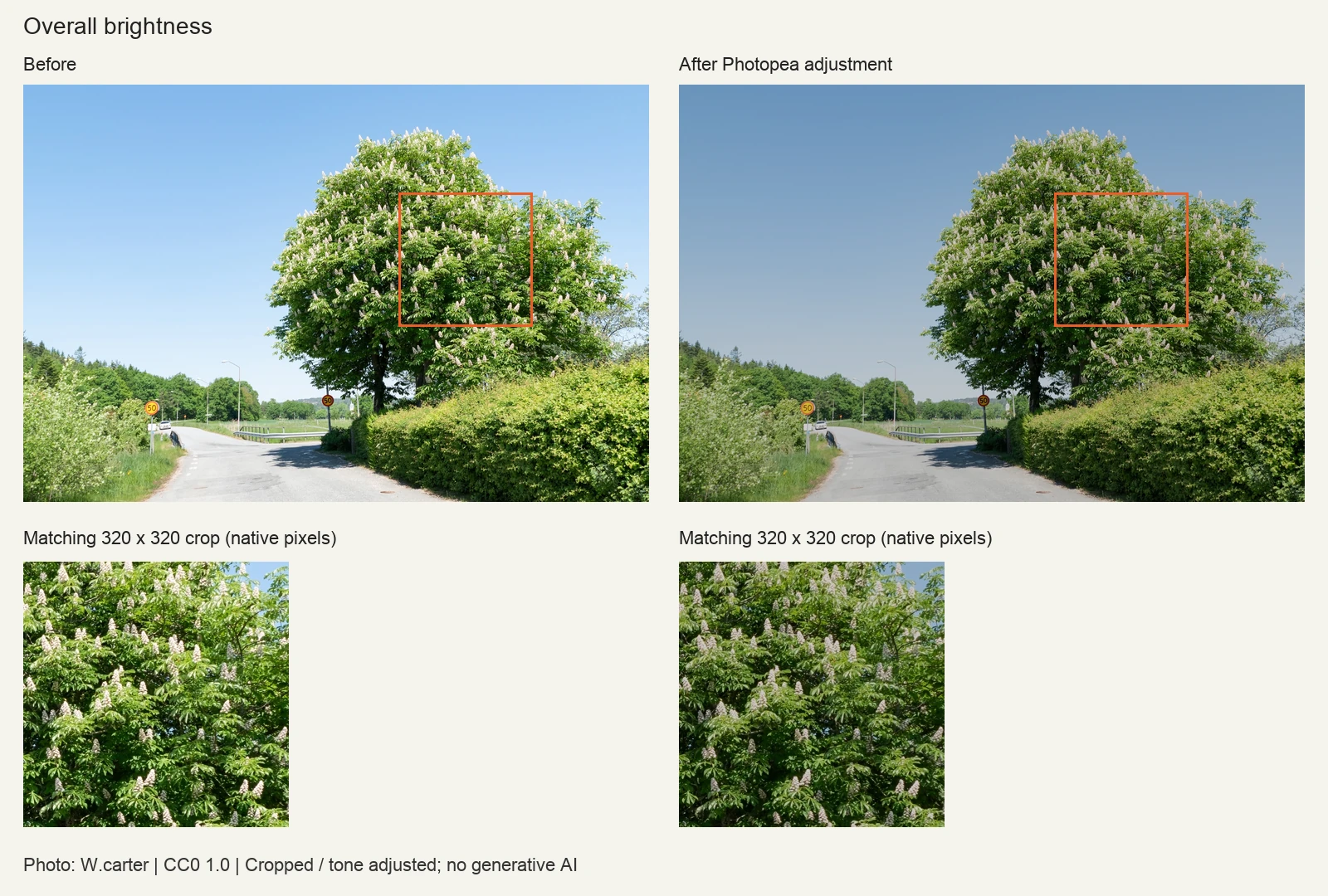
Case 1: An overall bright tree scene
What worked: lowering exposure made the road, foliage and sky less bright. The flower and leaf detail in the crop was already present before editing. This is a brightness correction, not proof of recovering lost texture. The darker version also makes shaded foliage harder to see, so choose the amount for your intended use.
We cropped the top, overexposed panel from W.carter's three-exposure photograph to a 1500 × 1000 JPEG. We did not use the middle, normally exposed panel as our “after.” In Image → Adjustments → Exposure, the tested values were Exposure -0.70, Offset 0, Gamma correction 1. We accepted the adjustment and exported a PNG at the same dimensions.
View the actual Exposure settings screenshot
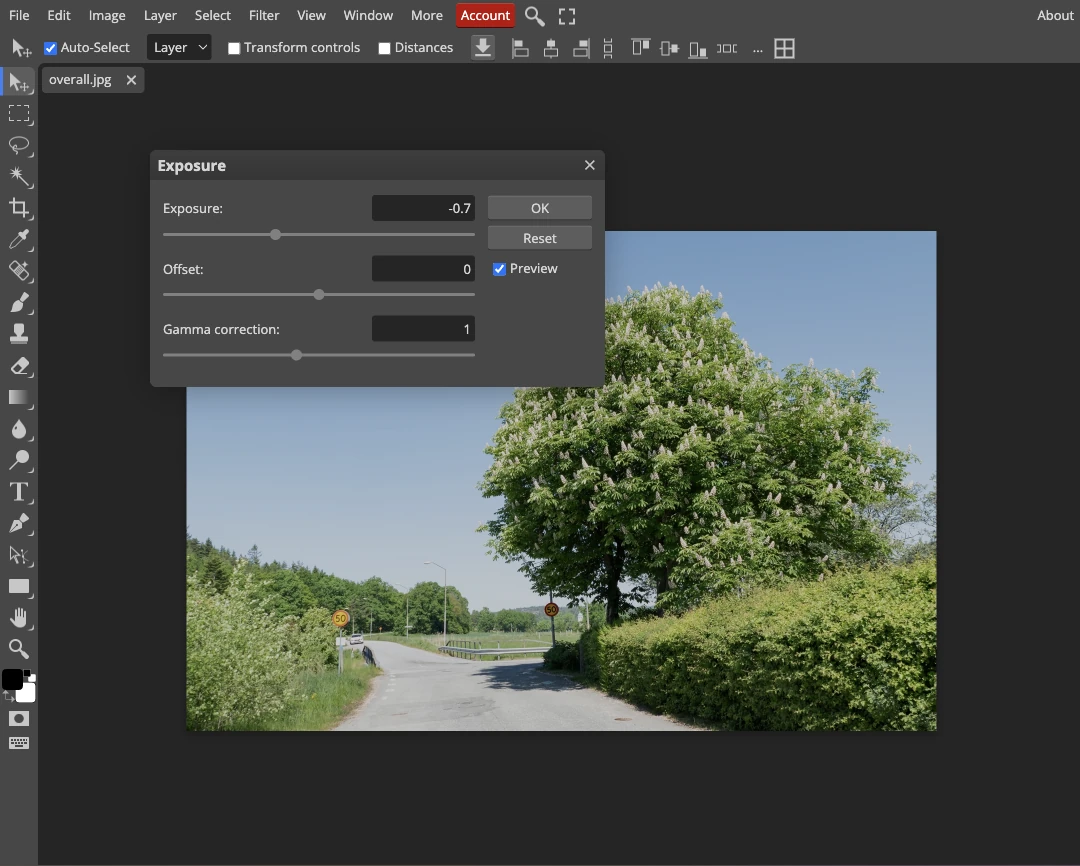
Photo: W.carter, original three-exposure image, CC0 1.0. Changes: top-panel crop, JPEG preparation, exposure adjustment, comparison layout and screenshot crop.

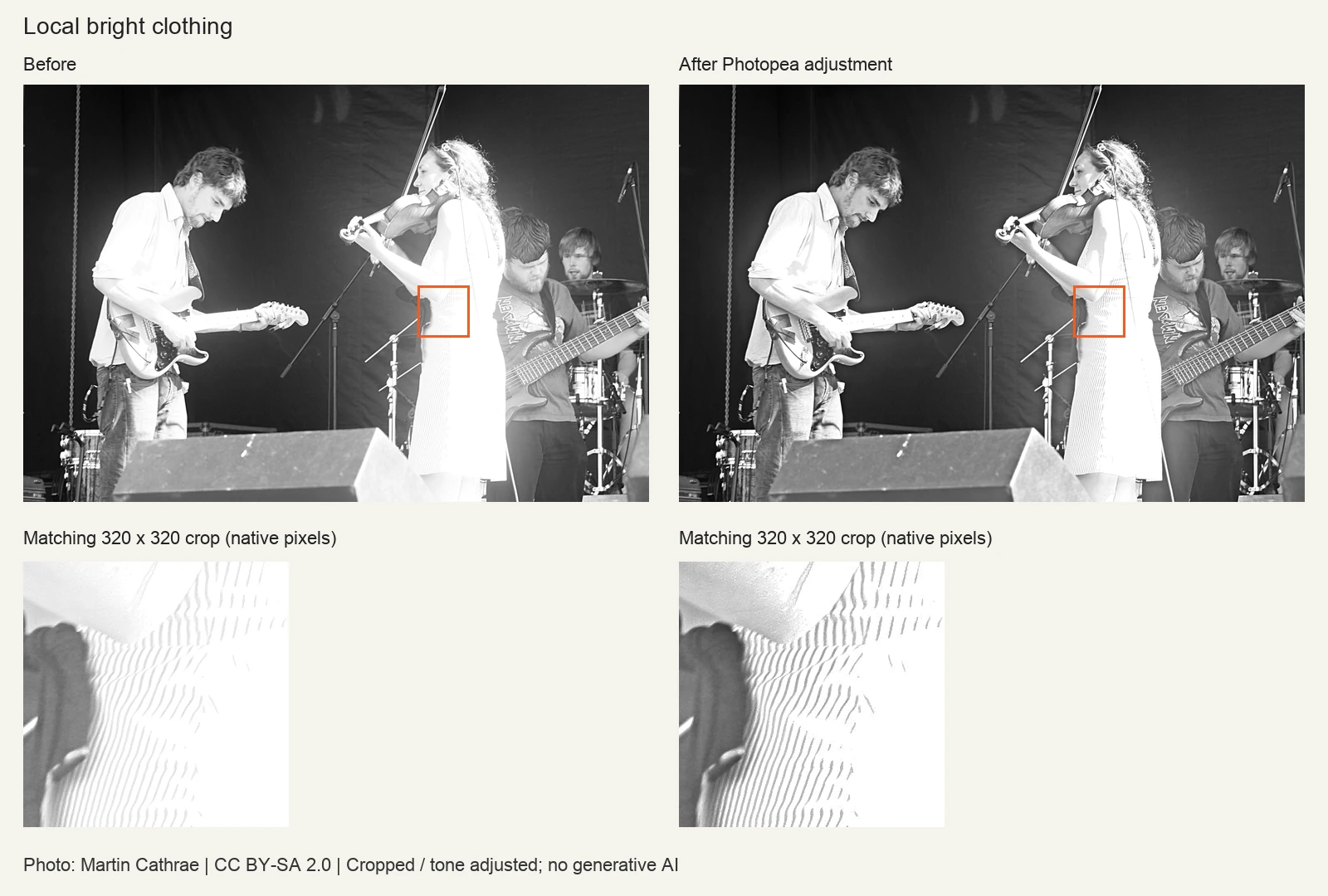
Case 2: Bright clothing on a dark stage
What worked partly: a highlight adjustment made the existing stripes on the violinist's dress easier to distinguish, while the darkest background stayed dark. The bright right-hand part of the dress still contains blank white areas. The result improves some visible texture; it does not repair all of the clothing.
We opened Martin Cathrae's 3888 × 2592 black-and-white JPEG and used Image → Adjustments → Shadows/Highlights. Our values were Shadows Amount 0%, Tone 25%, Radius 12 px; Highlights Amount 40%, Tone 50%, Radius 30 px; Color 0. With Shadows Amount at zero, the shadow settings did not add a shadow-lightening pass. We used tonal selection across the image, not a hand-painted spatial mask; bright areas elsewhere can also change.
View all Shadows/Highlights settings in the actual editor
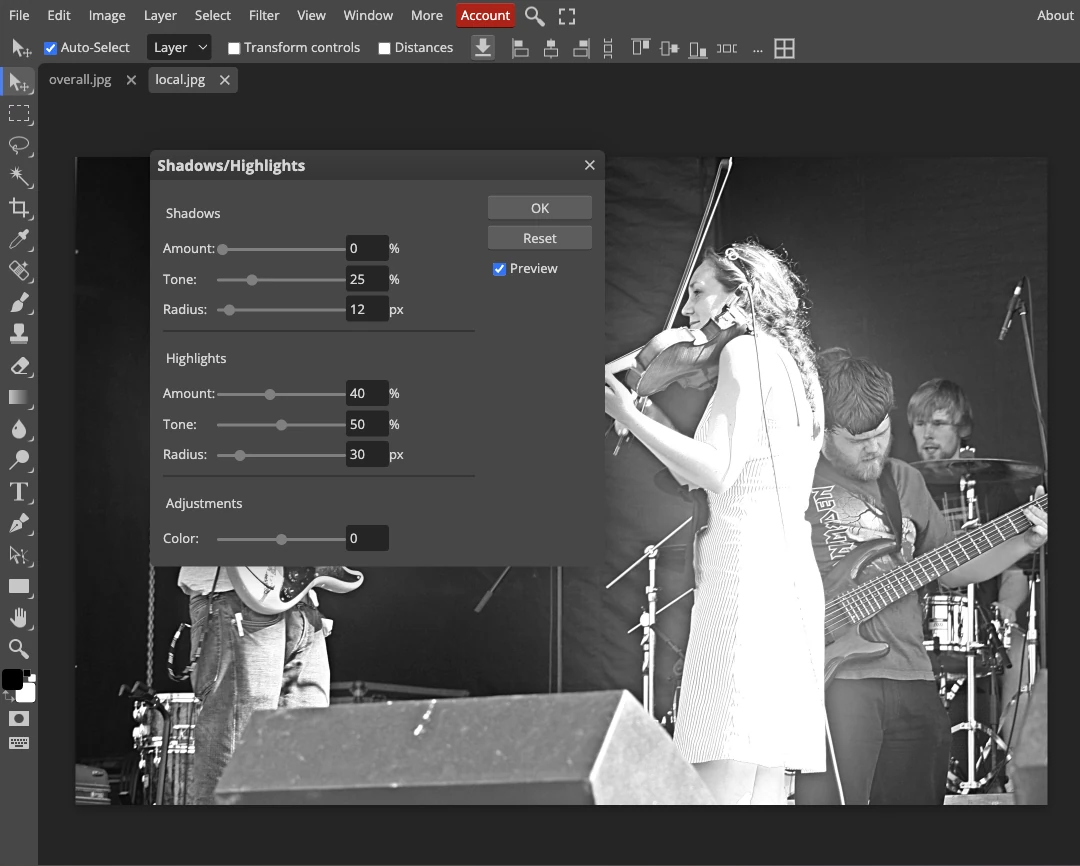
Photo: Martin Cathrae, “Overexposed!”, CC BY-SA 2.0. Changes: highlight adjustment, comparison crops and layout, and screenshot crop. The adapted photographic images here are also offered under CC BY-SA 2.0; no endorsement is implied.
.jpg)
Case 3: Severe clipping in an eclipse photograph
What failed: reducing exposure darkened the white center but revealed no structure inside our selected crop. This is the limit to watch for when a white sky, face or shirt turns gray without useful detail appearing. It is a failure example, not a recommended final edit.
We opened Mike Steele's 4928 × 3264 JPEG and applied Exposure -2.00, Offset 0, Gamma correction 1. In the selected 320 × 320 crop, every input pixel was RGB (255, 255, 255); after the export, every pixel was (135, 135, 135). The patch still had just one RGB value. That measurement describes this JPEG and this crop, not the availability of detail in a RAW file we did not have.
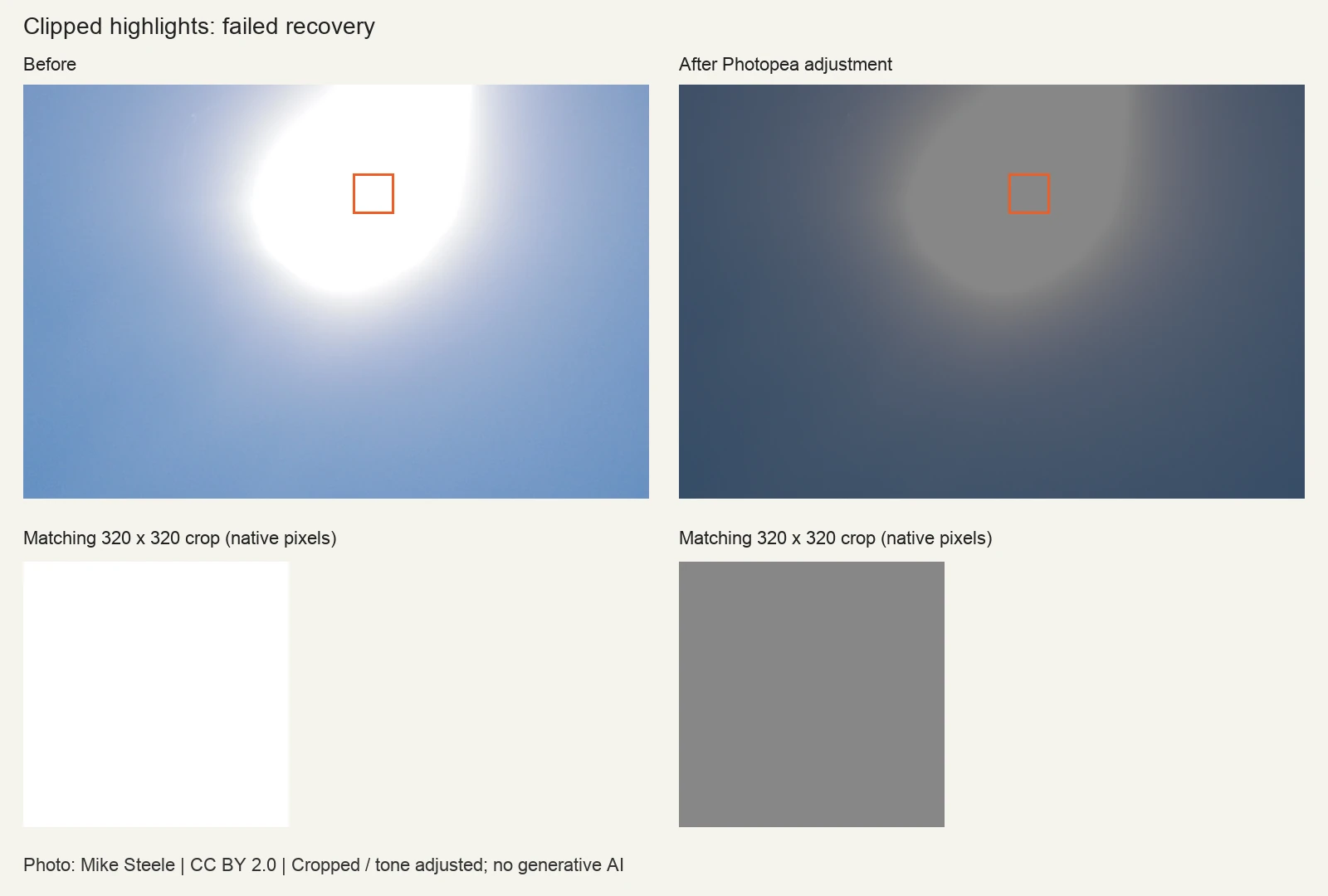
View the actual minus two Exposure setting
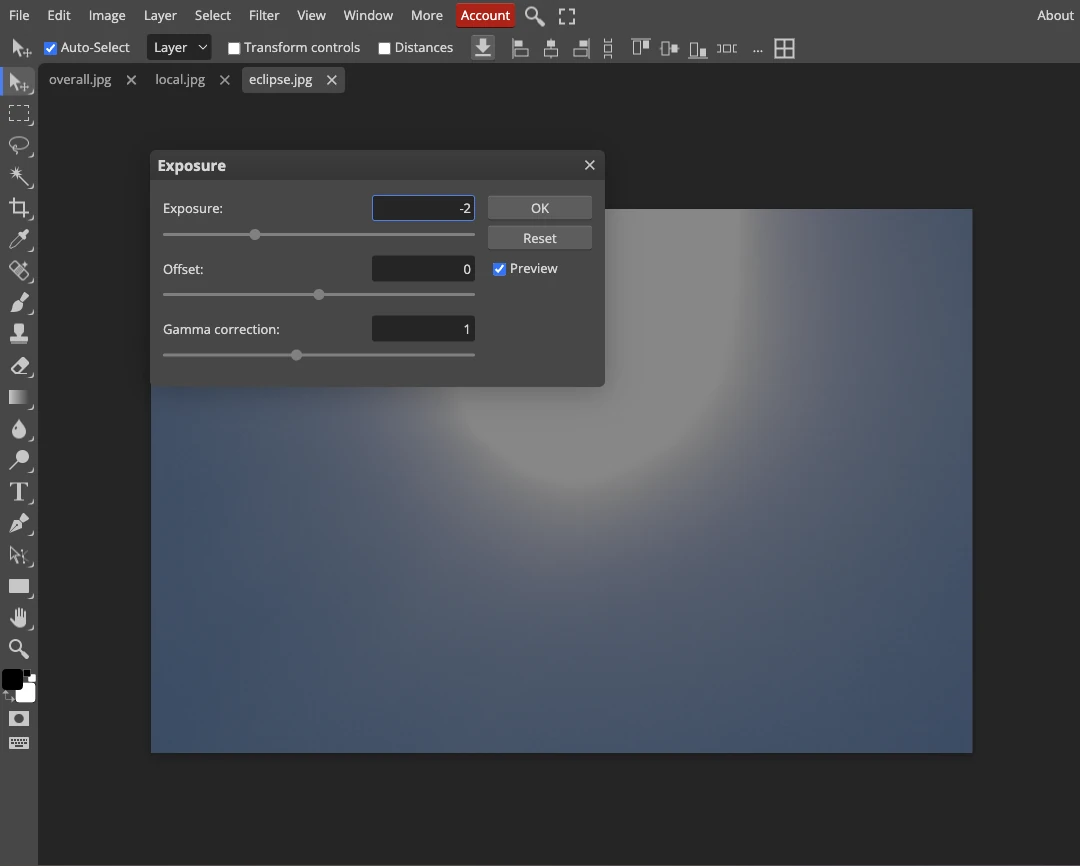
Photo: Mike Steele, overexposed eclipse photograph, CC BY 2.0. Changes: exposure adjustment, comparison crops and layout, and screenshot crop.
.jpg)
How to read these results: the first case corrects overall brightness, the second improves the visibility of surviving detail, and the third shows a failed recovery. None establishes what every editor, RAW file or AI model can do. The pixel measurements use the decoded input and full-size PNG export before the WebP previews were made.
What happened when we tried MyEnhancer on two corrected photos?
We ran one live General Enhance → Standard version → PNG task on each of the corrected stage and eclipse photos above. Each run used 4 existing credits on October 31, 2026. The tree scene was not tested in MyEnhancer. Two examples cannot establish a general success rate, and these tests do not compare all available versions.
The left side of each comparison is the actual processing copy prepared by the tool after upload. The right side is the downloaded result, matched to that copy's dimensions for inspection. This isolates the additional enhancement from the earlier resizing; it does not compare two full-resolution camera files.
Stage photo: some crisper edges, with a texture trade-off
The 3888 × 2592 corrected PNG became a 1732 × 1154 processing copy. The download was 3464 × 2308, despite the preflight card estimating 1732 × 1154. For the comparison below, we reduced that download to the processing-copy size with Lanczos resampling. The larger file is not evidence that missing camera detail was recovered.
At matched scale, some edges look crisper and some fine texture is smoother. The surviving dress stripes remain visible, but blank fabric areas do not acquire trustworthy original detail. This is a result to inspect for your own use, rather than a reason to keep every enhancement. If the exposure-corrected copy already meets your needs, skipping this pass is reasonable.
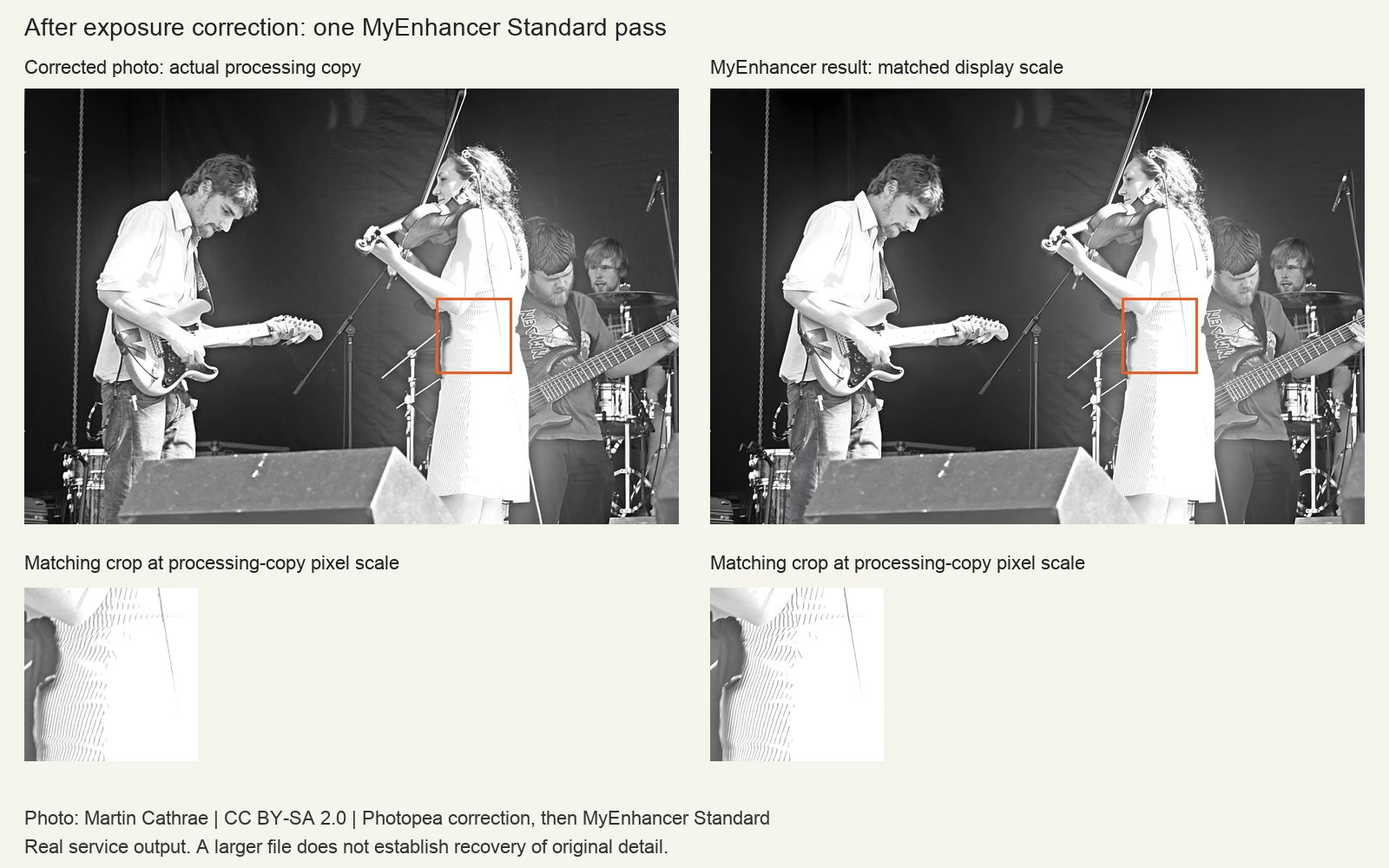
Photo: Martin Cathrae, “Overexposed!”, CC BY-SA 2.0. Additional changes: Photopea correction, tool input resizing, MyEnhancer enhancement, output resampling and comparison crops. These photographic adaptations are also available under CC BY-SA 2.0.
Eclipse photo: enhancement did not recover the clipped structure
The 4928 × 3264 corrected PNG became a 1737 × 1150 processing copy, and the download had the same dimensions. The center still looks featureless after enhancement. Its pixel values changed slightly, but that variation does not establish what was in the original scene.
This test gives no reason to recommend another enhancement pass for recovering this clipped region. Look for a RAW file or another exposure instead. A photo enhancer can be useful to evaluate remaining clarity problems, but it is not evidence for details the source no longer contains.
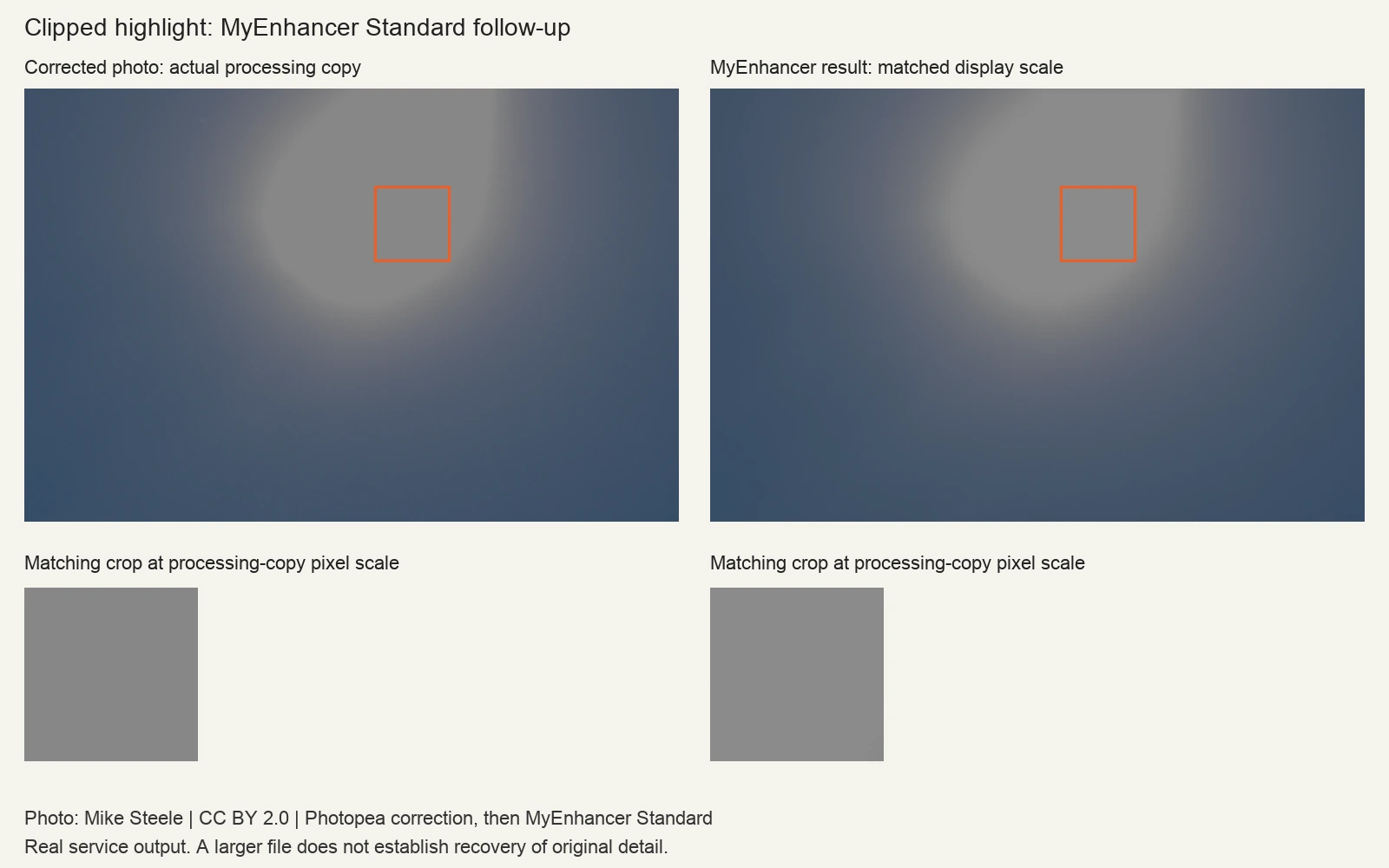
Photo: Mike Steele, overexposed eclipse photograph, CC BY 2.0. Additional changes: Photopea correction, tool input resizing, MyEnhancer enhancement and comparison crops.
What if an overexposed face or white sky stays blank?
Go back to the source before trying more filters. Look for the original file, another frame taken at the same time, or the photographer's RAW capture. A forwarded image or screenshot may be the only copy you have, but check before spending time on it.
If reducing the highlights produces a flat gray face or sky, the adjustment has not delivered the detail you need. Try the better source if one exists. Otherwise, consider whether a crop can make the picture useful. For an important portrait, accepting a bright area may be preferable to replacing the person's features.
Increasing sharpness is not an exposure correction. A crisp boundary around a blank patch does not tell you what was inside it.
Can AI fix blown-out highlights?
AI may generate a plausible replacement for missing texture. That does not establish what the camera originally captured. Treat a newly generated cloud, skin texture or shirt pattern as a reconstruction, and decide whether that is acceptable for the picture's purpose.
For a family portrait, compare identity and expression carefully. For a product photo, protect the label and material appearance. For documentary or evidentiary use, retain the original and avoid presenting generated details as observations.
Use MyEnhancer Photo Enhancer to evaluate the remaining clarity problem after exposure correction, following the steps above. It cannot verify the identity of a detail absent from the source. For a blank clipped area, use the original RAW file or another frame if available before considering a generated replacement.
Frequently asked questions
Can I fix an overexposed JPEG?
You can adjust its brightness and highlights. Whether useful texture appears depends on what remains in that file. If the important patch stays featureless, find the original RAW capture if available. Converting the JPEG to RAW will not recreate missing capture data.
Can I fix an overexposed photo on my phone?
Use a photo editor that provides exposure and highlight controls. Work on a copy and follow the same checks: overall brightness first when needed, then bright areas, then the exported result. Control names and available local adjustments vary by app.
Should I use a photo enhancer before or after fixing exposure?
Start with exposure correction so you have a useful baseline for judging any later enhancement. Then try one MyEnhancer pass if noise or mild softness still affects the photo. Compare with the corrected copy and check the processing dimensions before keeping it. These steps do not guarantee that an additional pass will help every source.
Which settings should I use in Lightroom?
Start from the original, reduce Exposure only as needed for overall brightness, and adjust Highlights while inspecting the affected area. Record your own values once you find a useful correction. Copying settings from a different photo is a starting experiment, not a reliable fix.
Why does my white sky turn gray instead of showing clouds?
Darkening changes the patch's tone. If cloud detail is absent from the source, it cannot reveal those clouds. Check the original RAW file before deciding that the scene is unrecoverable. Replacing the sky creates a different image.
When should you stop editing?
To fix overexposed photos, aim for a usable picture with believable tones and preserved details. Stop when the important areas look better at the intended viewing size. If the source cannot support the correction, keep the original and choose a crop, another frame or a clearly disclosed reconstruction.
Sources and editorial scope
The MyEnhancer editorial team performed the three Photopea JPEG adjustments shown above on October 31, 2026. Full-size PNG exports and original browser screenshots were retained for review. The public comparisons are WebP previews, with each before/after pair scaled alike. Screenshots are cropped to omit advertisements; their settings and image previews were not altered. Photopea's live web interface did not expose a build number in the tested dialogs.
We also tested MyEnhancer Standard once on each of the corrected stage and eclipse photos, retaining the actual processing copies and downloaded PNGs. The tree scene has only the Photopea test. We did not test RAW recovery or other enhancement versions. The photographs belong to the credited photographers; they are not our own camera captures. The supplied examples show the available JPEGs and cannot reveal their full editing history.
- Adobe: Lightroom editing controls and clipping indicators.
- Adobe: Fix an overexposed photo in Lightroom Classic.
- Adobe: Highlight Recovery in Camera Raw — historical technical background.
- Photopea: Adjustments and filters — editor documentation; the tested menu paths and values are shown in our screenshots.